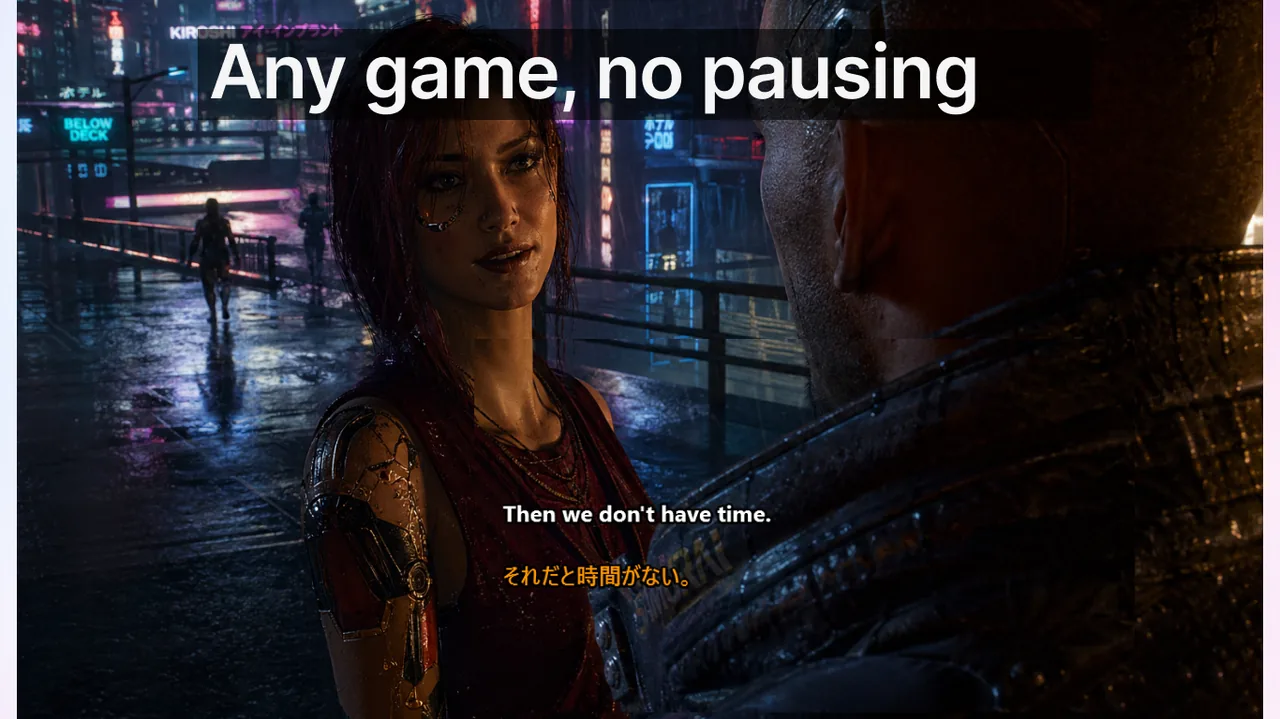
In ranked matches, players do not lose rounds because subtitles are "bad." They lose because communication is unstable: accidental overlay interactions, unclear fast callouts, and missed context in multilingual voice chat. This guide focuses on reliable Game Mode subtitles setup.
Contents
- Core principle: stability over visual tweaks
- Recommended baseline setup
- Team workflow that improves callout quality
- Visibility limits you should communicate clearly
- KPIs worth tracking
- Why most players never reach a stable competitive subtitle setup
- The 3-layer mental model: render, interact, communicate
- Per-genre baseline that works on day one
- Pre-queue checklist (90 seconds before clicking Play)
- Common configuration drift patterns and how to prevent them
- What ranked players say after switching to a frozen setup
- Edge case: streamers and ranked at the same time
- If your match still feels chaotic with subtitles working perfectly
- Related resources
Core principle: stability over visual tweaks
Font style matters less than interaction behavior. If the overlay can steal attention in a clutch moment, the system fails. Prioritize lock behavior, clear hotkey control, and predictable fullscreen rendering.
Recommended baseline setup
- Enable Lock/Game Mode before entering queue.
- Use Ctrl+Shift+L as the single emergency toggle.
- Set game display mode to Borderless Fullscreen.
- Keep subtitle position fixed near your lower focal area.
- Use short, high-contrast subtitle styling for peripheral reading.
Team workflow that improves callout quality
Pre-match
- Align key callout vocabulary across the squad.
- Define map terms and abbreviations once, then keep them stable.
- Confirm everyone uses the same lock toggle behavior.
In-match
- Prefer short callouts: action + location + timing.
- Avoid long explanations during peak combat phases.
- Use subtitle confirmation for high-risk rotations.
Post-match review
- Collect 5 to 10 repeated callout patterns.
- Remove ambiguous phrasing that caused confusion.
- Pin an updated team glossary in Discord.
Visibility limits you should communicate clearly
Some exclusive fullscreen rendering paths can hide desktop overlays. This is a rendering path constraint, not always a subtitle engine bug. For operational reliability, use borderless fullscreen when possible.
KPIs worth tracking
- Repeat requests: "say again?" count per match.
- Callout latency: time from call to team response.
- Misread incidents: wrong rotation from unclear voice data.
- Clutch communication quality: subjective score by IGL.
Why most players never reach a stable competitive subtitle setup
The single biggest cause of "subtitles are unreliable in ranked" is not the subtitle engine. It is configuration drift. Players adjust opacity, font size, and timeout settings between sessions, then forget which build worked. The next ranked night, half the overlay behaves differently and the squad blames the tool. This guide treats configuration as a frozen artifact: once a competitive build is dialed in, it should not be touched mid-week.
The 3-layer mental model: render, interact, communicate
To diagnose Game Mode quickly, separate the overlay stack into three independent layers. Each layer fails for a different reason and is fixed in a different place.
Layer 1: Render path
Whether your subtitle window is visible at all depends on the game's display mode. Exclusive fullscreen uses a dedicated swap chain that hides desktop compositor surfaces; this is why some titles "lose" the subtitle overlay during clutches. Switch to Borderless Fullscreen (sometimes labeled "Fullscreen Windowed") to keep the compositor in charge. On Windows 11, this also unlocks Auto HDR for the game without sacrificing overlay visibility.
Layer 2: Interaction path
If the overlay is visible but accidentally steals focus, your mouse clicks land on the subtitle window instead of the game. Lock/Game Mode toggled via Ctrl+Shift+L makes the overlay pass-through: input events propagate to the game, the overlay still renders, and you never lose tab during a peek.
Layer 3: Communication path
Even with perfect rendering and locked overlay, subtitles fail if callouts are unstructured. The subtitle engine cannot recover meaning that the speaker never encoded clearly. Squad-level vocabulary discipline turns a noisy callout into a usable subtitle line.
Per-genre baseline that works on day one
| Genre | Display mode | Subtitle position | Timeout |
|---|---|---|---|
| Tactical FPS (CS2, Valorant) | Borderless Fullscreen | Lower-left, off HUD | 2.0 s |
| Battle Royale (Apex, PUBG) | Borderless Fullscreen | Lower-center, above ammo | 2.5 s |
| MOBA (LoL, Dota 2) | Borderless Fullscreen | Lower-center, away from minimap | 3.0 s |
| MMO raid (WoW, FFXIV) | Borderless Fullscreen | Upper-right, near party frames | 3.5 s |
Pre-queue checklist (90 seconds before clicking Play)
- Confirm Lock/Game Mode is ON. The lock icon should be green in the system tray.
- Press Ctrl+Shift+L once and watch the overlay briefly flash — that confirms the hotkey is bound.
- Open the game window. The subtitle frame should stay above the game without taking focus.
- Speak a short test phrase. The subtitle should appear within 600 ms.
- Move your mouse aggressively across the subtitle area. Crosshair must not "snap" to the overlay edge.
If any step fails, do not queue. Fixing a render bug between rounds is what costs you the match.
Common configuration drift patterns and how to prevent them
- The "opacity slider creep." Players increase opacity after every patch claiming visibility issues. After three patches the subtitle is a solid block covering the HUD. Lock opacity at 70% and forbid adjustments mid-season.
- The "new hotkey on every reinstall." Drivers update, hotkeys reset. Keep a one-line note in your Discord pinned message: "Ctrl+Shift+L = subtitle lock toggle." Re-verify after every Windows feature update.
- The "moving overlay." Pulling the overlay to a new position before each genre swap leaks fractional pixels into the wrong monitor in multi-display setups. Pick one position per game profile and never drag it freehand.
What ranked players say after switching to a frozen setup
Anonymized squad data from a CS2 stack across one ranked season: average "repeat callout" rate dropped from 4.1 per match to 1.6 once the team locked one subtitle profile per map pool. The improvement did not come from a feature change — it came from removing configuration variance.
Edge case: streamers and ranked at the same time
If you stream while queuing ranked, do not run a separate subtitle profile for the stream. Use a single profile, then let OBS capture the desktop including the subtitle frame. Two simultaneous overlay engines fight for input focus and reintroduce exactly the instability Lock Mode is designed to eliminate.
If your match still feels chaotic with subtitles working perfectly
The problem is communication, not rendering. Re-read the team workflow section above and pin a 10-term glossary. A subtitle layer cannot save unstructured callouts; it can only make structured ones faster to parse.
Related resources
- Game Mode subtitles page
- Discord and Twitch subtitles in real time
- Fullscreen overlay troubleshooting playbook
Try the workflow in your next session
Use one consistent subtitle process across games, voice chat, and streams.
Download free