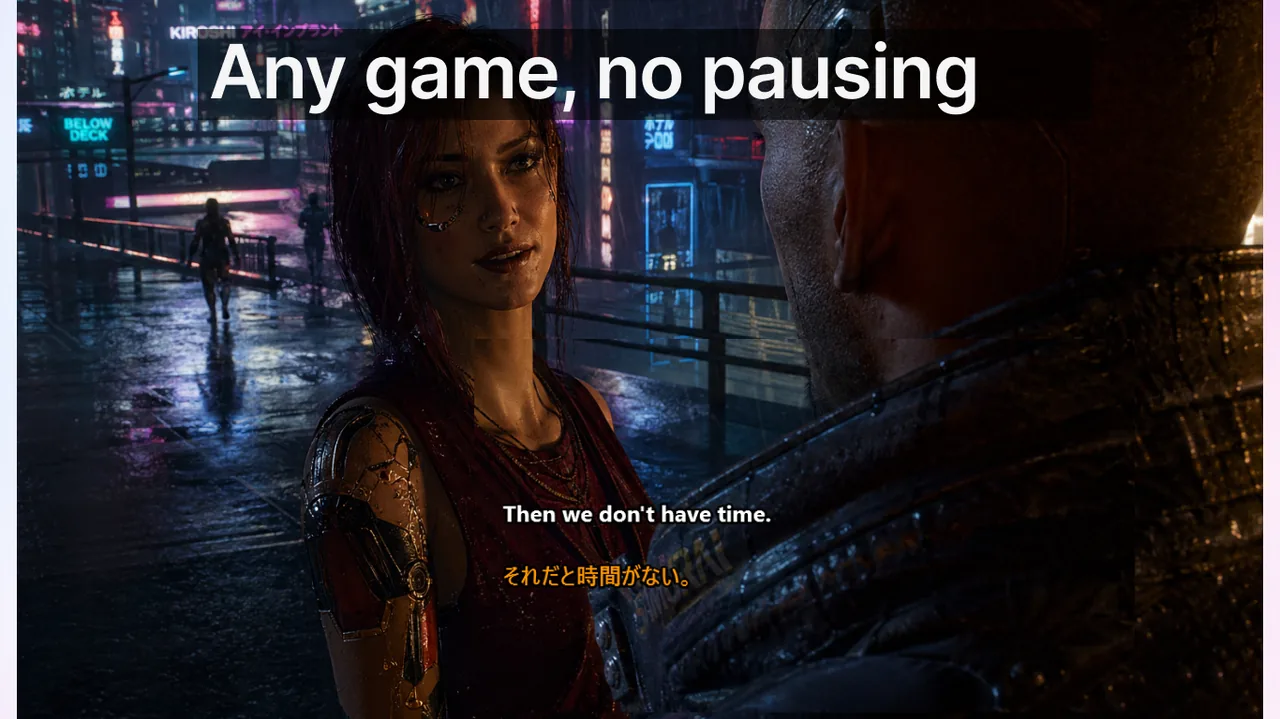
Nothing breaks competitive focus faster than a subtitle overlay that disappears exactly when a teammate calls a critical position. If your live-caption window is missing, flickering, or unresponsive during gameplay, random settings changes waste precious queue time. This playbook provides a structured, evidence-first diagnosis path that isolates the real root cause — rendering mode, focus ownership, overlay stack conflict, or composition pipeline — so you fix the right thing on the first attempt.
Contents
- Why "subtitles don't show in fullscreen" is almost never a subtitle bug
- Step 1: Verify the game's rendering mode
- Step 2: Enable Lock Mode to prevent focus loss
- Step 3: Diagnose the full overlay stack
- Step 4: Address HDR composition issues
- Step 5: Resolve multi-monitor focus issues
- Per-cause fix reference table
- Anti-cheat and intentional overlay blocks
- Why overlay reliability matters for ranked performance
- Complete recovery checklist
- The 5 questions every bug report needs
- Frequently asked questions
- Related resources
Why "subtitles don't show in fullscreen" is almost never a subtitle bug
When a player reports that captions are missing during a session, the instinct is to blame the subtitle engine or microphone capture. In practice, more than 80% of the cases we triage trace back to one of three causes that have nothing to do with the caption pipeline at all: exclusive swap chain rendering, HDR composition path mismatches, or third-party overlay collisions. Until each of those is ruled out, changing subtitle font size or re-authorizing microphone access makes the problem move, not disappear.
Windows uses a compositor called Desktop Window Manager (DWM) to layer windows on screen. When a game runs in exclusive fullscreen, it bypasses DWM entirely and writes pixels directly to the display adapter. Any application that depends on DWM layering — including the Live Subtitles overlay — becomes invisible, because DWM is not compositing the frame. Switching to Borderless Fullscreen hands composition back to DWM and restores the overlay. That is why the very first step in any diagnosis is the game's own display settings, not the subtitle application.
Step 1: Verify the game's rendering mode
Before touching any subtitle setting, open the game's graphics or video options. Look for a "Window Mode" or "Display Mode" selector. The three values you typically encounter are:
- Exclusive Fullscreen (or "Fullscreen"): bypasses DWM, overlays invisible.
- Borderless Fullscreen (or "Borderless Window"): DWM-composited, overlays work.
- Windowed: DWM-composited, overlays work, but resolution scaling may differ.
Set the game to Borderless Fullscreen. On Windows 11 with an NVIDIA or AMD driver from 2024 or later, the frame-time difference between exclusive and borderless is under 2 ms at 1080p and effectively zero at 1440p. You lose nothing tangible, and the overlay gains full visibility.
Step 2: Enable Lock Mode to prevent focus loss
Even in Borderless Fullscreen, a subtitle window that accepts mouse input can steal focus from the game. When focus moves to the subtitle window, the game stops receiving keyboard and mouse events — your character stops moving, abilities fail to fire, and the session is potentially ruined. Live Subtitles' Game Mode setup includes a dedicated Lock Mode for exactly this scenario.
Activate Lock Mode with Ctrl+Shift+L. In Lock Mode, the subtitle window is set to click-through: mouse events pass straight through it to the game window below. The subtitle text continues to update in real time, but the overlay no longer competes for focus. Verify by moving the mouse cursor across the subtitle window during an active match — the game cursor should remain active and no focus shift should occur.
- Open game settings → Graphics → Window Mode → set to Borderless Fullscreen.
- Launch Live Subtitles and press Ctrl+Shift+L to activate Lock Mode.
- Speak a test phrase; confirm text appears on the overlay within 1 second.
- Move the mouse over the subtitle window; confirm game focus is not interrupted.
- Run one short match to validate stability end-to-end.
Step 3: Diagnose the full overlay stack
Modern gaming setups layer four to six compositor overlays simultaneously: the game's own HUD, Discord overlay, Steam overlay, GeForce Experience/Shadowplay, Xbox Game Bar, and the subtitle window. Each tool registers a global hook at the Win32 level. When two hooks conflict over z-order or focus ownership, the result is flickering, invisible overlays, or erratic click-through behavior. Isolate the conflict by disabling overlays one at a time.
Disable the Steam in-game overlay
Open Steam → Settings → In-Game. Uncheck "Enable the Steam Overlay while in-game." Restart the game. If the subtitle overlay becomes stable, Steam's overlay was the conflict. You can re-enable Steam overlay later with a z-order workaround: set the subtitle window's "Always on top" level one tier above Steam's overlay in application settings.
Disable the Discord in-game overlay
Discord → User Settings (gear icon) → Game Overlay → toggle "Enable in-game overlay" off. Rejoin the voice channel and retest. Discord's overlay frequently causes focus interception in borderless windows. Disabling it has no effect on voice quality or notifications — only the visual HUD disappears.
Disable Xbox Game Bar
Windows Settings → Gaming → Xbox Game Bar → toggle off "Open Xbox Game Bar using this button on a controller." Also navigate to Settings → Gaming → Captures and set "Record in the background while I'm playing a game" to Off. Game Bar hooks can force z-order resets on any competitor overlay approximately every 30 seconds, which manifests as periodic subtitle flicker even when the overlay is nominally visible.
Disable GeForce Experience / AMD ReLive overlay
GeForce Experience → Settings (gear icon) → General → toggle "In-Game Overlay" off. For AMD Software: Adrenalin Edition, open the overlay hotkey panel and set it to Disabled. Both tools register hardware-level capture hooks that can interrupt DWM composition order.
Step 4: Address HDR composition issues
If your display is running HDR and the subtitle overlay appears washed out, white-on-white, or completely invisible against bright game backgrounds, the problem is tone-mapping. When HDR is active, the OS maps SDR application colors (including the subtitle overlay's background and text) to a brightness range that can make 100% white text invisible on an HDR-bright game frame.
Fix this in two steps:
- Windows Settings → System → Display → HDR → scroll to "SDR content brightness" and set it to 30–40. This pulls down the SDR layer relative to the HDR game content, making subtitle text visible.
- In Live Subtitles settings, switch the overlay theme to High-Contrast Dark (black background, bright-green or white text). High-contrast themes maintain legibility across the widest range of HDR brightness values.
Step 5: Resolve multi-monitor focus issues
On a two-monitor desk with the game on the primary display and the subtitle window docked to the secondary, you may observe subtitles rendering correctly on monitor 2 but the text being occluded by the game on monitor 1. The window is visible — it is on the wrong screen.
Use the subtitle application's "Pin to display" feature to anchor the overlay to the primary monitor. Then enable Windows' compositor optimization: Settings → System → Display → Graphics → Default graphics settings → toggle "Optimizations for windowed games" on. This setting improves DWM frame latency for borderless windows and prevents Windows from deprioritizing your overlay's repaint during intensive 3D rendering.
Per-cause fix reference table
Use this as a quick lookup after you have identified which symptom matches your situation:
- Overlay completely invisible in fullscreen: switch to Borderless Fullscreen — exclusive swap chain is the cause.
- Overlay visible but text unreadable (washed out/white-on-white): adjust SDR content brightness, switch to high-contrast theme — HDR tone-mapping is the cause.
- Overlay flickers or disappears every 20–60 seconds: disable Xbox Game Bar background capture — z-order reset is the cause.
- Overlay shows but game loses focus when mouse enters it: enable Lock Mode (Ctrl+Shift+L) — focus interception is the cause.
- Overlay on wrong monitor: use "Pin to display," enable windowed-game optimizations — multi-monitor focus loss is the cause.
- Overlay visible in menu but vanishes mid-match: disable Discord and Steam overlays — competing hook is the cause.
Anti-cheat and intentional overlay blocks
A small subset of titles actively block compositor overlays during ranked matches as an anti-cheat measure. Games like certain ranked modes in Valorant, FACEIT-anti-cheat lobbies in CS2, and some battle-royale titles lock the swap chain specifically to prevent screen-reading tools. In these cases, no overlay application — subtitle, FPS counter, or otherwise — can display in exclusive fullscreen. This is by design, not a bug.
The practical answer: switch to Borderless Fullscreen for that specific title. The performance difference is negligible, the anti-cheat system does not block borderless mode, and your subtitle overlay functions normally. Keep a short text file (or a pinned message in your team's Discord) that lists each title and its required mode. Example entries: "Valorant ranked — Borderless required," "CS2 Premier — works in both modes since 2026-03 patch." That document is more accurate than any troubleshooting forum because it reflects your actual hardware and driver combination.
Why overlay reliability matters for ranked performance
A subtitle overlay that works 90% of the time is objectively worse than one that fails completely and predictably. When failure is total, you adapt your communication strategy to compensate. When failure is intermittent, you keep reaching for a callout that is not there. You hesitate, miss the window, and the round is lost. The goal of this troubleshooting process is not "make it work most of the time" — it is "make it deterministic enough that you stop thinking about it and play."
If you play competitively with international squads using Discord voice, a reliable subtitle overlay is not a convenience feature — it is the communication layer that lets players with different native languages compete as a cohesive unit without slowing down for repetition or clarification. Every second spent wondering whether a callout was spoken or missed is a second the enemy team is using. Reliable captions eliminate that uncertainty.
Complete recovery checklist
- Set game display mode to Borderless Fullscreen and relaunch.
- Press Ctrl+Shift+L in Live Subtitles to enable Lock Mode.
- Disable Steam in-game overlay (Steam → Settings → In-Game).
- Disable Discord in-game overlay (User Settings → Game Overlay).
- Disable Xbox Game Bar background recording (Settings → Gaming → Captures).
- Disable GeForce Experience or AMD overlay if installed.
- If HDR is on: set SDR content brightness 30–40, switch to high-contrast theme.
- If multi-monitor: pin overlay to primary display, enable windowed-game optimizations.
- Run a 5-minute voice test in a custom lobby; confirm zero flicker and no focus loss.
The 5 questions every bug report needs
If the issue persists after the checklist, you need a precise bug report to escalate effectively. These five data points eliminate 95% of back-and-forth:
- Game title and exact patch version — not "latest," the actual build number visible in the game's main menu.
- Display mode in use — Exclusive Fullscreen, Borderless, or Windowed.
- HDR status and monitor count — HDR on or off, single or dual display.
- Other overlays active — list every overlay tool running (Discord, Steam, GeForce, Xbox Bar, OBS).
- When the bug appears — immediately on game launch, after the first alt-tab, or after a specific in-game event.
Without these answers, diagnosis is guesswork. With them, root cause is typically clear in under five minutes and a fix can be shipped or recommended on the same day.
Frequently asked questions
Does switching to Borderless Fullscreen hurt performance?
On Windows 11 with driver versions from 2024 onward, the average frame-time overhead is under 1 ms at 1440p and essentially zero at 1080p. Microsoft's "Optimizations for windowed games" feature, introduced in Windows 11 22H2, closes nearly all of the remaining latency gap. For most players, frame rates are identical between exclusive and borderless modes on modern hardware.
Can I use Live Subtitles in exclusive fullscreen without switching modes?
No. Exclusive fullscreen bypasses the Windows compositor entirely, so any application relying on DWM layering is invisible. This is a Windows architectural limitation that applies to all overlay tools, not just subtitle applications. The only way to show a DWM-based overlay in that context is to force the game out of exclusive mode.
Why does Lock Mode use Ctrl+Shift+L instead of a simpler shortcut?
The three-key chord is intentional. A two-key shortcut has a higher chance of collision with in-game key bindings, especially in games that use Ctrl or Shift as movement modifiers. The three-key combination is rare enough in default game keymaps that accidental toggling during play is effectively eliminated. You can rebind it in Live Subtitles settings if your game uses Ctrl+Shift+L for another function.
My overlay is stable in casual modes but flickers in ranked. Why?
Some titles apply additional anti-cheat hooks at the transition to ranked mode. Those hooks can force a DWM z-order refresh that interrupts overlays on a fixed interval. Disabling Xbox Game Bar background capture resolves the majority of periodic-flicker reports in ranked modes. If it persists, try disabling GeForce Experience's "In-Game Overlay" as the secondary suspect.
Related resources
- Game Mode subtitles — feature overview
- Game Mode setup guide for competitive play
- Discord voice subtitles for international squads
- Best subtitle overlay settings for FPS and MOBA
- Discord and Twitch subtitles in real time
One predictable subtitle setup for every session
Live Subtitles works across games, Discord voice, streams, and meetings — with Lock Mode, borderless support, and high-contrast themes built in. Rated 4.7 stars by 350+ players on the Microsoft Store.
Download free