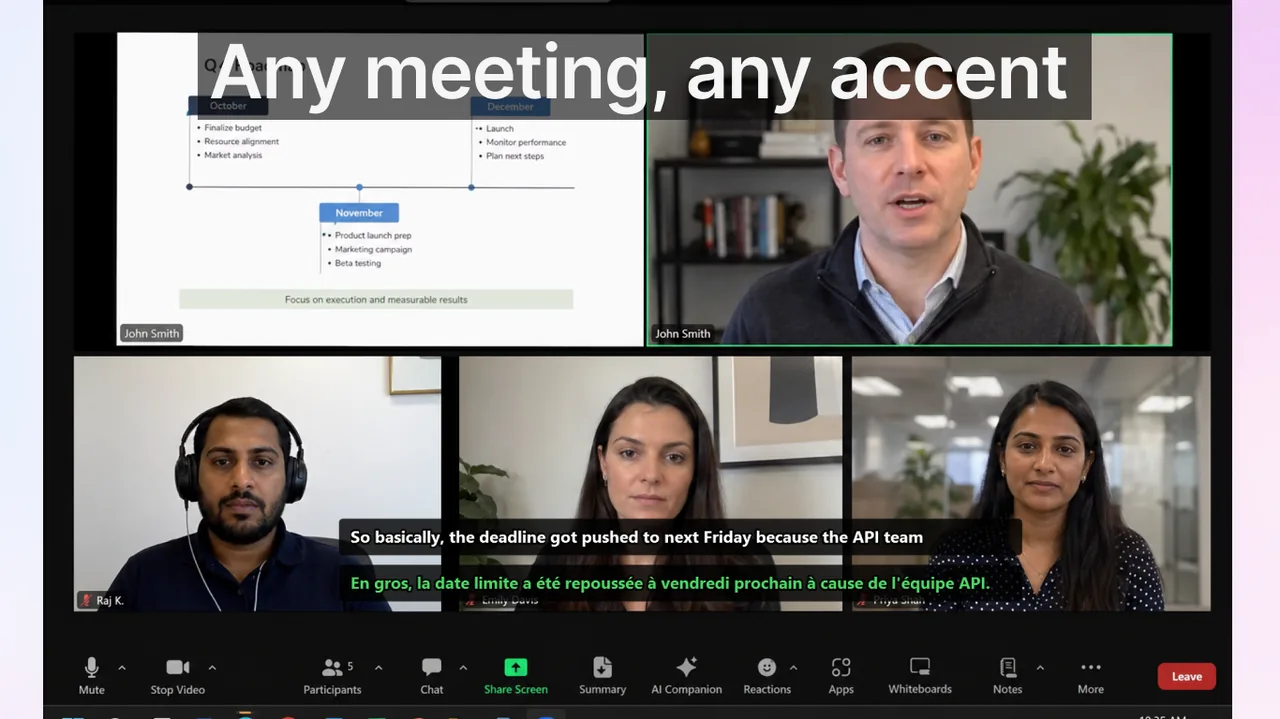
Web Captioner went offline in late 2023 and has not returned. For years it was the default free answer for live captions — a browser tab, one click, big readable text on a projector — and its shutdown left churches, classrooms, community events and streamers without a replacement. Two and a half years on, nothing has replaced it one-for-one. What exists instead is four categories of tool, each covering part of what it did. This guide covers what each one is good at, what it costs, and which one to pick for your situation.
Contents
- What happened to Web Captioner
- The bar a replacement has to clear
- Category 1 — browser-based captioning tools
- Category 2 — desktop caption overlays
- Category 3 — OBS and streaming setups
- Category 4 — platform-native captions
- Side-by-side comparison
- Picking by use case
- What you give up, whichever you choose
- Frequently asked questions
- References
What happened to Web Captioner
Web Captioner went offline in late 2023, and the reason given was sustainability — a free service with real running costs and no revenue behind it. For several years it had been the default answer to "we need live captions and we have no budget": you opened a browser tab, clicked start, and text appeared on screen.
The people it left behind were a specific crowd. Small churches projecting captions for the congregation. Teachers captioning a lesson for a hard-of-hearing student. Community meetings, local council sessions, conference side rooms, and streamers who wanted captions without buying anything. None of these had the budget for enterprise captioning, and most of them had no replacement lined up.
Two and a half years on, the gap has been filled — but not by a single successor. What replaced Web Captioner is four different categories of tool, each of which covers part of what it did. Which one you want depends almost entirely on where the captions need to appear.
The bar a replacement has to clear
It is worth being precise about what made Web Captioner good, because "live captioning tool" covers products that are nothing like it.
- Zero install. It ran in a browser tab. No admin rights, which mattered enormously on locked-down school and church computers.
- Zero cost. Not a trial, not a freemium tier with a watermark.
- Zero account. You did not sign up; you clicked start.
- Big readable output. Full-screen text designed to be projected, not a small transcript pane.
- Immediate. Setup was measured in seconds, which is what made it usable by a volunteer five minutes before a service started.
Almost no tool in 2026 hits all five. Being honest about which ones you actually need is the fastest way to choose.
Category 1 — browser-based captioning tools
The closest philosophical successors are browser tools that run speech recognition in the tab. Several now run Whisper-family models compiled to run in the browser rather than calling a cloud speech API, which has two consequences: language coverage is much wider than Web Captioner's was, and once the model is cached the tool can work with no network at all.
These are the right answer if the original appeal was "no install, no account, projected on a screen." A pop-out or full-screen caption view gives you the projector display Web Captioner was used for, and the browser requirement is a feature rather than a limitation on machines where you cannot install software.
What to check before you rely on one: whether the model downloads on every visit or caches, how it behaves when the laptop is on battery (in-browser inference is heavy), and whether it can caption system audio or only the microphone. That last one decides whether it can caption a video you are playing, or only a person speaking in the room.
Category 2 — desktop caption overlays
The second category moved the job out of the browser entirely. A desktop app captures audio at the operating-system level and draws captions in a floating window that sits above everything else on screen.
This buys you three things a browser tab structurally cannot. It can caption system audio — anything playing on the machine, including a video, a call, or a stream — rather than only a microphone. The overlay floats above fullscreen applications instead of living inside a tab you have to keep visible. And because it is not competing with a browser's audio permissions, it keeps working when you switch apps.
Live Subtitles sits in this category — a desktop app on Windows and macOS, with mobile apps for iOS and Android. Relative to the Web Captioner checklist above it wins on capability and loses on two points worth stating plainly: it requires an install, which rules it out on locked-down machines, and it is a paid app with free minutes to try rather than free forever. If your requirement was strictly "free and installable by nobody," a browser tool is the honest recommendation and Category 1 is where you should look.
Where it clearly wins is anything involving translation or media audio: dual subtitles showing the original and a translation at once, 50+ language pairs, and captions for content playing on the machine rather than speech in the room. See live captions for any app for how the system-audio approach works in practice.
Category 3 — OBS and streaming setups
A meaningful share of Web Captioner's users were pointing a browser window at OBS, capturing it as a source, and burning the captions into a stream or a recording. If that was your setup, you do not need a Web Captioner replacement at all — you need a proper streaming caption tool.
The OBS captions plugin does this natively and better than the window-capture hack ever did. It transcribes your microphone source directly, keeps latency under about half a second, can write transcripts out as .srt, and on platforms that support closed captions it feeds the native caption track — so viewers can toggle captions on or off instead of having them permanently burned into the frame.
The one incompatibility to know about: it is an OBS plugin, and Streamlabs does not load OBS plugins. On Streamlabs or XSplit you are looking at a browser-source captioning service instead. Our OBS subtitles guide covers how these layers fit together in a real rig.
Category 4 — platform-native captions
If your event is streamed rather than in-person, the platform may caption it for you at no cost. This is the cheapest option available and the most commonly overlooked.
The catch is how narrow the coverage is. YouTube Live generates automatic captions, but in English only, on normal-latency streams, and enabled per stream by the creator rather than once for a channel. Viewers can layer auto-translate on top, which means translating an already-imperfect English transcript — usable, but noticeably rougher than translating from clean text. Meeting platforms like Zoom, Teams and Google Meet all caption natively now, with varying language support. Twitch and Kick have no first-party automatic captioning at all.
For a straightforward English-language stream on a platform that supports it, native captions cost nothing and require no extra software. For anything multilingual, or for an in-person event, they will not carry the load.
Side-by-side comparison
| Browser tools | Desktop overlay | OBS plugin | Platform-native | |
|---|---|---|---|---|
| Install required | No | Yes | Yes (OBS) | No |
| Cost | Often free | Paid, free to try | Free | Free |
| Captions system audio | Varies | Yes | Configurable | N/A |
| Projector / big-screen output | Yes | Yes, resizable overlay | Via OBS scene | No |
| Goes into a stream for viewers | Via window capture | Via window capture | Yes, natively | Yes |
| Translation | Varies | 50+ pairs, dual display | Limited | English-first, limited |
| Works offline | Some, once cached | Depends on model | No | No |
| Closest to Web Captioner | Yes | Partly | No | No |
Picking by use case
Church, classroom or community meeting
A browser tool is the closest replacement and usually the right one. It keeps the properties that mattered — no install, no account, no cost, projectable — and modern ones cover far more languages than Web Captioner did. Test it on the actual machine and the actual microphone before the day; room audio is what breaks live captioning, not the software.
Captioning a video, a call or a stream you are watching
Browser tools that only hear the microphone cannot do this. You want a desktop overlay that captions system audio, which also gets you translation if the content is not in your language.
Streaming to an audience
Use the OBS captions plugin if you are on OBS, or a browser-source captioning service if you are not. Do not capture a caption webpage in a window source; it was always a workaround and there are now proper tools for the job.
A conference or a paid event
This is the one case where the paid event-captioning services earn their price. Attendee-device caption delivery via a URL or QR code, integrations with presentation software, and accountable accuracy are things the free tier of this category does not provide.
What you give up, whichever you choose
Two limitations are common to every option and are worth setting expectations around, because they are properties of live speech recognition rather than flaws in any particular product.
Accuracy tracks audio quality, not price. A clear voice on a decent microphone in a quiet room transcribes well on nearly all of these tools. A room with reverberation, several people talking over each other, or a laptop microphone three metres from the speaker degrades all of them. If you can only improve one thing, improve the microphone rather than the software.
Proper nouns are the recurring failure. Names, places, product names and jargon are exactly what a general-purpose model has least reason to predict, and exactly what an audience notices getting mangled. Tools that support a custom vocabulary are worth choosing for this reason alone if your content is full of specific terminology.
Neither of these was solved by Web Captioner either. What has genuinely improved since 2023 is language coverage and the ability to run models locally — both a direct result of the shift from cloud speech APIs to Whisper-family models small enough to run on ordinary hardware.
Frequently asked questions
Is Web Captioner coming back?
There has been no indication of a return since it went offline in late 2023. Plan around a replacement rather than waiting.
What is the closest free replacement?
A browser-based captioning tool. That category preserves what made Web Captioner useful — no install, no account, no cost, projectable output — and generally supports more languages than it did.
Can any of these caption audio from a video instead of a microphone?
Desktop overlays can, because they capture audio at the operating-system level. Browser tools vary, and many are microphone-only. Check this specifically if you need to caption media playback rather than someone speaking in the room.
Which option translates as well as it captions?
Desktop overlays and paid browser-source services lead here. Free browser tools and platform-native captions are English-first, and platform auto-translate works by translating an already-imperfect transcript.
Do I need an internet connection?
Not always. Tools built on locally-run Whisper-family models can work offline once the model is cached. Anything calling a cloud speech API, including the OBS captions plugin and platform-native captions, requires a connection.
References
- OBS Studio — official site
- OBS Captions Plugin — project repository
- YouTube Help — automatic captioning
- W3C WAI — Captions and subtitles guidance
Related reading
A caption overlay that runs on your machine, not in a tab
Live Subtitles captions system audio or a microphone in a floating window you can place anywhere — with real-time translation into 50+ languages.
Download free