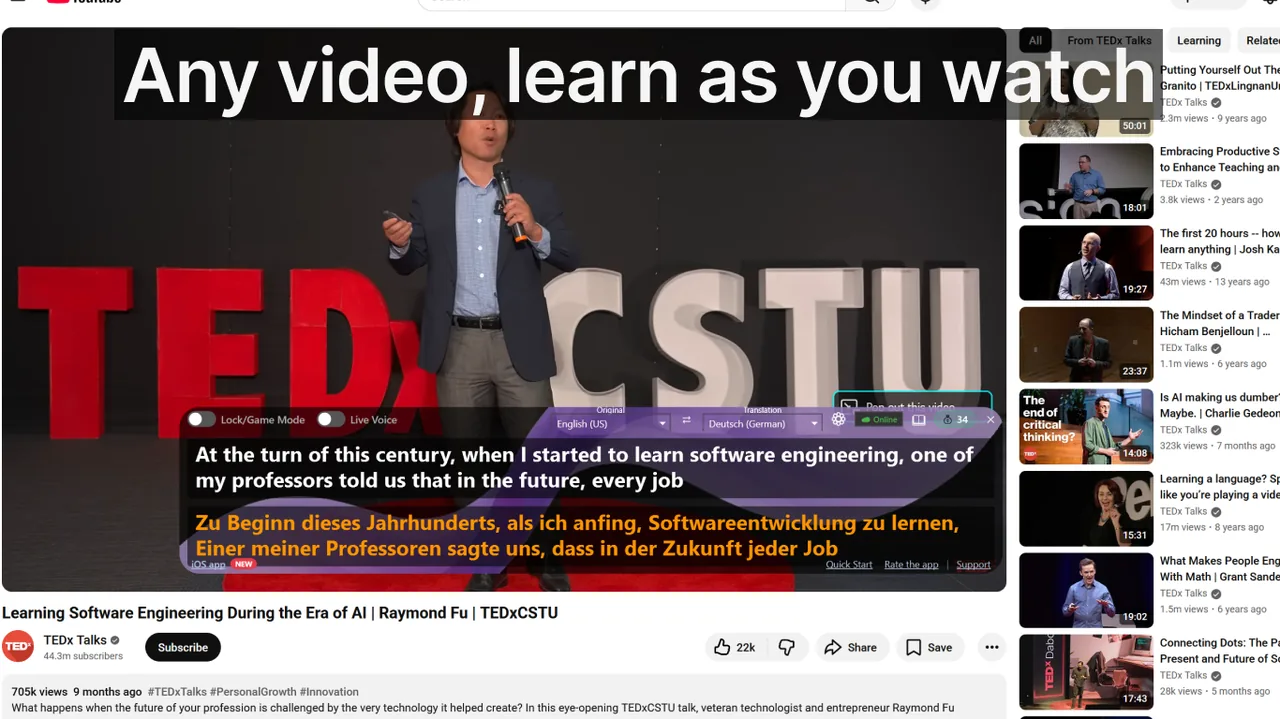
Search engines lump every audio-to-text tool into one category, but the products that ship under that label split into two fundamentally different workflows. The choice between real-time transcription and batch transcription isn't a minor preference — it determines whether the tool is useful at all for your specific job. Getting this wrong is the single most common reason users abandon transcription software after a week. This guide lays out exactly how the two workflows differ, which tools lead in each, what accuracy numbers actually mean in practice, and how to run a structured evaluation so you pick the right tool before you pay for it.
Contents
- The core difference: real-time vs batch transcription
- 2026 comparison: the leading tools by workflow
- How to choose by use case
- Accuracy in practice: what the numbers actually mean
- Privacy and data handling: a critical 2026 consideration
- Platform-specific notes for 2026
- 14-day structured evaluation plan
- What to ignore in 2026 transcription marketing
- Frequently asked questions
- References and further reading
The core difference: real-time vs batch transcription
Both workflows convert speech to text. The similarity ends there.
- Real-time transcription produces text within 1–2 seconds of speech. You read while you listen. The output is a continuous caption stream that scrolls as audio plays. The value is immediacy — not the quality of the stored document. Examples: Windows Live Captions, Live Subtitles, Google Live Caption, Zoom Live Transcription.
- Batch transcription requires a completed audio or video file. You upload the recording, the engine processes it (usually faster than real time), and you receive an editable document with speaker labels and timestamps. The value is the permanent, searchable artifact. Examples: Otter.ai, Rev, Notta, Trint, Fireflies.ai, Microsoft Word transcribe.
2026 comparison: the leading tools by workflow
The table below covers the tools with the largest user bases in 2026. "Accuracy" ranges reflect real-world multi-speaker meeting conditions, not clean-studio benchmarks.
| Tool | Workflow | Best for | Real-world accuracy (meetings) | Main limitation |
|---|---|---|---|---|
| Live Subtitles | Real-time captions + translation | Any desktop audio while it plays: meetings, lectures, streams, videos | 85–93% (depends on mic quality and accent) | Output is a caption stream; not designed as a document export tool |
| Windows Live Captions | Real-time captions (system-level) | All Windows audio, no sign-in required | 80–90% | English only; no translation; no caption history scroll |
| Zoom Live Transcription | Real-time (meeting-embedded) | Zoom calls — zero setup required for hosts | 82–88% | Zoom-only; transcript saved only if host enables cloud recording |
| Otter.ai | Batch + live meeting recap | Post-meeting summaries and action items | 78–87% | Live mode still has 3–5 second lag; optimized for English meetings |
| Rev | Batch (AI-only or AI + human review) | Legal-grade or broadcast-grade accuracy when human-reviewed | AI: 80–88%; Human: 99%+ | Human review costs $1.50+/min and takes hours; not suitable for live use |
| Notta | Batch + multi-language | Long-form recordings: lectures, podcasts, interviews | 80–88% | Not a real-time captioning tool; upload workflow only |
| Fireflies.ai | Batch (meeting bot) | Automated post-meeting notes in CRM/Slack integrations | 79–86% | Requires bot invitation to meeting; privacy-sensitive for some clients |
| Microsoft Word Transcribe | Batch (upload audio) | Word-document-final transcripts inside Microsoft 365 | 78–85% | Tied to Microsoft 365 account; upload-only, post-processing latency |
| Google Recorder (Pixel) / Apple Voice Memos | Batch on-device | Quick voice notes with on-device privacy | 80–90% (single speaker, quiet room) | Phone-only; poor speaker separation; no export to Word |
How to choose by use case
Most transcription decisions come down to four scenarios. Identify yours before evaluating tools.
Use case A — You need to read what is being said right now
This is the real-time workflow. You're in a meeting with a speaker whose accent is difficult, watching a foreign-language stream, or attending a lecture where you can't keep pace with note-taking. What you need is a caption overlay that follows speech with under 2 seconds of latency and covers all desktop audio — not just one app.
Live Subtitles routes any audio playing on your Windows PC through a speech recognition engine and overlays captions on screen. Unlike platform-native tools (Zoom, Teams, Meet), it works across all apps simultaneously — you can caption a YouTube lecture, a podcast, and a Teams call without switching tools. Zoom's own live captions are competent inside Zoom but disappear the moment you switch windows. For cross-app coverage, a dedicated real-time tool wins.
Key factors for this use case: latency below 2 seconds, support for your language pair, and ability to caption system audio (not just microphone input). Learn more about how these systems work in our article on AI-generated live captions in 2026.
Use case B — You need a searchable, editable archive of a conversation
This is the batch workflow. You ran a client call, recorded a 60-minute interview, or conducted user research. After the session ends, you need a document you can ctrl+F, annotate, and share with colleagues. The exact words matter more than speed.
Pick a batch tool with speaker diarization (automatic speaker labeling) and timestamp export. Otter, Notta, and Rev are the three strongest options in 2026. Otter integrates directly with Zoom/Meet/Teams via calendar. Notta handles longer recordings — up to 5 hours — better than Otter's free tier. Rev is the only service that offers human-reviewed transcription for cases where 80–90% AI accuracy is insufficient (legal depositions, broadcast closed captions).
Don't pay for accuracy you don't need. Human review is only worth the cost for legal evidence, formal media production, or any context where a mis-transcription has financial or compliance consequences.
Use case C — You need both live and post-meeting transcription
This is the most common enterprise scenario: you want captions during the meeting and a polished transcript afterward. The correct answer is to run two separate tools, not to find one tool that does both adequately.
Run Live Subtitles or the platform's native live captions during the meeting for in-meeting comprehension. After the meeting, feed the recorded audio or video file into Otter or Notta for the post-meeting document. The two tools serve different jobs at different times — don't force one to do the other's work.
The one thing to avoid: using a batch tool's "live" mode as your in-meeting caption layer. Otter's live mode introduces 3–5 seconds of lag — enough to lose thread during fast conversations. Real-time tools are genuinely real-time; batch tools' live modes are not.
Use case D — Voice notes and personal dictation
If you're recording a personal voice note, a reminder, or a short dictation for yourself, use the OS-native tools. Apple Voice Memos (iOS/macOS) and Google Recorder (Pixel) both produce on-device transcripts without sending audio to a server. That on-device privacy is a genuine advantage for personal use.
Upgrade to a dedicated batch service only when you have a multi-speaker recording (interviews, panels) that requires speaker labels — on-device tools handle single-speaker audio well but produce poor results with overlapping speakers.
Accuracy in practice: what the numbers actually mean
Every transcription vendor publishes "up to 99% accuracy." Here's what that means in real conditions:
- Clean studio audio, single speaker, native accent: 95–99% across all major engines. The vendors aren't lying about this number — it just isn't your use case.
- Video conference, 2–4 speakers, average microphone: 80–90%. This is the realistic range for most business users.
- Noisy room, strong accent, technical vocabulary: 70–82%. In this range, human review becomes cost-effective for critical content.
- Multi-language switching (code-switching): 55–75%. No engine handles mid-sentence language switches reliably in 2026. If your meeting switches languages, expect gaps.
The accuracy gap between real-time and batch tools is roughly 3–6 percentage points in equivalent conditions — batch tools have more processing time and can apply language model corrections retroactively. That gap narrows when real-time tools use beam-search decoding with a lookahead buffer, which Live Subtitles and Windows Live Captions now do.
Privacy and data handling: a critical 2026 consideration
Audio transcription requires sending speech data somewhere — either to a cloud API or processing it locally. In 2026, the options differ significantly:
- Cloud-processed (Otter, Rev, Notta, Fireflies): Audio and transcript stored on vendor servers. Check each vendor's data retention policy. Fireflies stores transcripts indefinitely unless manually deleted. Review your company's data handling policy before using these for client or confidential conversations.
- Cloud-processed with no long-term storage (Live Subtitles): Audio is processed via cloud speech APIs in real time but caption text is not stored on vendor servers. The caption stream exists locally on your device.
- On-device (Windows Live Captions, Google Recorder, Apple Voice Memos): Audio never leaves the device. Zero cloud data exposure. The trade-off is reduced accuracy and fewer language options.
For GDPR-regulated contexts (EU customers, HR conversations, legal discussions), on-device or no-storage-cloud tools are the defensible default. Read the privacy policy before the sales call, not after.
Platform-specific notes for 2026
Zoom
Zoom Live Transcription is now available on all paid plans and free plans in certain regions. It uses a cloud speech engine and produces a scrollable caption panel during the call. The transcript is only saved if the host enables cloud recording — otherwise it disappears at call end. For permanent transcripts, export the recording to Otter or Notta. See our platform caption comparison for a full breakdown of Zoom vs Teams vs Meet.
Microsoft Teams
Teams includes live transcription (Teams Premium in some regions) and an AI-generated meeting recap (Microsoft Copilot). The recap includes action items and chapter markers, but only in English as of mid-2026. The transcript is stored in OneDrive and is searchable within the Teams interface.
Windows (system-wide)
Windows 11 22H2 and later include Live Captions as a native OS feature (Win+Ctrl+L). It captions all system audio in English only. For non-English audio or translation between languages, Live Subtitles extends the capability to 100+ language pairs and works on any Windows 10/11 machine without requiring a specific Windows build.
14-day structured evaluation plan
Most users pick a tool in 10 minutes based on a landing page, use it on toy audio, and declare it the winner. Then they hit a real meeting and discover it doesn't work. The following 14-day plan is designed to avoid that.
- Day 1: Decide your primary workflow. Write it down: "I need live captions during meetings" or "I need post-meeting searchable transcripts." Do not waver.
- Days 2–6: Install exactly one tool that matches your primary workflow. Use it on every relevant audio event — no exceptions. Note failures, not just successes.
- Day 7: Review your notes. Count: (a) how many times accuracy was unacceptably low, (b) how many times latency caused comprehension failures, (c) how often the tool wasn't running when you needed it.
- Days 8–12: Add a second tool only if you genuinely need the other workflow. If your primary need is real-time captions and you occasionally want a post-meeting document, add Otter or Notta now. If you don't need it, don't install it.
- Days 13–14: Compare cost vs. value. Free tiers are enough for occasional use. Pay when the tool saves you more time than it costs — a rough benchmark is: if it saves 30 minutes per week, it's worth $10/month.
The goal is two tools maximum: one real-time, one batch. Every tool you add beyond two increases tool-switching friction without adding equivalent value.
What to ignore in 2026 transcription marketing
- "100+ languages supported": Language count almost never correlates with quality on the 2–3 languages you actually use. Test your specific language pair with your actual audio. Spanish-English is not the same as Portuguese-Japanese.
- "99% accuracy": This number is always measured on clean, single-speaker, standard-accent studio audio. Expect 10–20 percentage points lower in real meetings. Ask vendors for accuracy data on your language and domain.
- "AI summaries and action items": Useful when well-calibrated, but no AI summary captures meeting nuance better than a 3-sentence human note written immediately after the meeting. Treat AI summaries as a draft, not a deliverable.
- "No setup required": Every tool requires some configuration — language settings, audio source selection, output destination. "No setup" usually means "setup is hidden until something goes wrong."
- Free tier word or minute limits: Most free tiers are calibrated to be just barely insufficient for regular professional use. Calculate your monthly audio volume before assuming the free tier works for you.
Frequently asked questions
Is real-time transcription accurate enough to replace the recording entirely?
For comprehension and note-taking: yes, for most users in most meetings. For evidence, precise quoting, or legal/compliance purposes: no. The recording plus a batch-processed transcript is always the safer archive for high-stakes content. A real-time caption stream is designed to be read once, not referenced repeatedly.
Which tools work without an internet connection?
On-device tools only: Windows Live Captions (English), Apple Voice Memos transcription, Google Recorder (Pixel), and the on-device mode in some Android launchers. All cloud-based tools — Otter, Rev, Notta, Live Subtitles, Fireflies — require an active internet connection. For offline work in high-security environments, on-device is the only option.
Can a real-time tool also export a final formatted transcript?
Some can export a caption log as a text file. The output is a timestamped stream — not a polished document with speaker labels and paragraph structure. If your deliverable must look like a Word document, plan a batch pass. Use the real-time tool for comprehension during the session and the batch tool for the archive afterward.
How does Live Subtitles differ from Windows Live Captions?
Windows Live Captions works on English audio only, has no translation, and requires Windows 11 22H2+. Live Subtitles supports 100+ language pairs including real-time translation, works on Windows 10 and 11, and captions any desktop audio source including system audio from other apps. It's available on the Download free
Do I need a paid transcription tool for personal use?
Probably not. OS-native tools (Apple Voice Memos, Google Recorder, Windows Live Captions) cover personal voice notes and single-speaker recordings for free. Pay for a dedicated service when you have multi-speaker meeting recordings, need CRM integrations, or work across multiple languages in a team context.
What happens if I switch languages mid-conversation?
Code-switching (mid-sentence language changes) remains the hardest problem in speech recognition in 2026. All major engines drop accuracy significantly when languages alternate. If your meetings are consistently bilingual, choose a tool that explicitly supports bilingual transcription (some Notta and Otter plans) rather than a monolingual engine that happens to support both languages in separate sessions.
References and further reading
- Otter.ai — meeting transcription and summaries
- Rev — AI and human transcription services
- Notta — audio and video transcription
- Microsoft 365 — transcribe recordings in Word
- Apple — transcribe Voice Memos recordings
- Fireflies.ai — automated meeting notes
Related reading
Try real-time transcription on any desktop audio
Live captions and real-time translation across meetings, streams, and any audio source — 100+ language pairs, no batch upload required. Rated 4.7 stars on the Microsoft Store.
Download free