Twitch is the largest live platform with no first-party automatic captions. Everything that puts text on a Twitch stream in 2026 is third-party, and the options are not interchangeable — they differ in who has to install them, whether viewers can switch them off, whether they survive into the VOD, and whether they work at all on a channel that has never set anything up. This guide walks through every route captions can take to a Twitch viewer, what each one costs, and which one fits depending on whether you are watching or broadcasting.
Contents
- How captions actually reach a Twitch stream
- Option 1 — the OBS captions plugin (native CC track)
- Option 2 — Stream Closed Captioner (Twitch Extension)
- Option 3 — browser-source caption services
- Option 4 — viewer-side caption apps
- Side-by-side comparison
- Which option actually fits your situation
- The gap none of these fully closes
- Frequently asked questions
- References
How captions actually reach a Twitch stream
Before comparing tools it helps to know that "Twitch captions" is not one feature. Text can reach a viewer's screen by three completely different routes, and every tool in this article picks one of them. The route determines what the tool can and cannot do, far more than its feature list does.
Route 1 — the native caption track. Twitch supports closed captions carried alongside the video, the same way broadcast television does. Viewers toggle them on or off, they survive into the VOD, and they render in the mobile apps. The broadcaster's software has to inject them into the stream.
Route 2 — a Twitch Extension overlay. Extensions draw on top of the player using Twitch's own extension runtime. The broadcaster installs and activates the extension; viewers see the overlay on desktop and mobile. The text is not part of the video, so it does not survive into the VOD.
Route 3 — pixels burned into the video. The broadcaster renders caption text as a source in OBS, so it becomes part of the encoded frame. Everyone sees it, nobody can turn it off, and it is permanent in the VOD.
There is a fourth route Twitch has nothing to do with, and it is the one most viewers actually need: captions generated on the viewer's own machine. More on that below, because it is the only option that does not depend on the streamer.
One thing to be clear about upfront: Twitch has no first-party automatic captions. Unlike YouTube Live, there is no setting a streamer can flip to get machine-generated captions from the platform itself. Everything below is third-party.
Option 1 — the OBS captions plugin (native CC track)
The OBS captions plugin is the strongest broadcaster-side option, and it takes Route 1: it feeds captions into Twitch's native closed-caption track rather than drawing them on top.
That distinction matters more than it sounds. Because the captions ride in the stream itself, they show up in the Twitch mobile apps, they persist in the VOD, and viewers can turn them off if they find them distracting. Extension overlays do none of those three things.
Practical characteristics worth knowing:
- Captioning runs off Google's speech recognition, so it needs a network connection but no local GPU.
- Latency is typically under half a second — small enough that viewers do not read a caption for something that happened two plays ago.
- It can caption only while the microphone source is unmuted and active, which stops it from transcribing whatever is on your desktop between scenes.
- It can write transcripts out as
.srtfiles, which is useful if you re-cut streams into clips later. - It supports open captions through an OBS text source for destinations that have no native CC support.
- Language support is solid for languages with western character sets and thinner elsewhere.
The significant limitation is structural: it is an OBS plugin. Streamlabs does not load OBS plugins, so if your entire setup is built on Streamlabs this option is closed to you without migrating.
Option 2 — Stream Closed Captioner (Twitch Extension)
Stream Closed Captioner is the best-known caption extension on Twitch and takes Route 2. The broadcaster installs the extension, signs in on the companion site, and clicks on when going live; the site handles speech recognition from the broadcaster's microphone and pushes text to the overlay.
For broadcasters it is free to install and run. The paid element sits on translation: viewers who want captions translated spend Bits to unlock translation for a 24-hour window, historically 500 Bits, which covers the machine-translation bill. The translation language set has stayed small — English, German, Spanish and French in the coverage available at the time of writing.
Two things to weigh before committing to it. First, because it is an overlay rather than a caption track, the text does not survive into your VOD, so clip and highlight viewers get nothing. Second, it is a developer-run, self-funded project; that is not a criticism of its quality, but it does mean you should check the announcements page before you rely on it for an important broadcast.
It has one clear advantage over the OBS plugin: it does not care what broadcasting software you use. Streamlabs, XSplit, Twitch Studio — the extension runs on Twitch's side, so your encoder is irrelevant.
Option 3 — browser-source caption services
A third family of tools runs captioning in the cloud and hands you a URL you drop into OBS, Streamlabs or XSplit as a browser source. The text renders into your scene, which makes this Route 3: burned into the video.
These services are where most of the multilingual capability in this category lives. Because translation happens server-side, they typically offer far more target languages than an extension does, and several support showing two languages at once for bilingual audiences.
The trade-offs are consistent across the category. Burned-in captions cannot be turned off by a viewer who does not want them, and they occupy fixed screen real estate you must design around — which is precisely how captions end up covering a kill feed or a webcam. They also add a monthly bill, usually in the few-dollars-per-month range, and they introduce a dependency: if the service is down, your captions are down mid-stream.
If your audience is genuinely international and you are willing to pay and to lay out your scene around a caption bar, this is the most capable broadcaster-side option. If not, the OBS plugin gives you more of what most streams need for free.
Option 4 — viewer-side caption apps
Every option above shares one assumption: that the streamer did something. As a viewer, that assumption fails most of the time. The overwhelming majority of Twitch channels run no captioning at all, and you cannot install anything on someone else's stream.
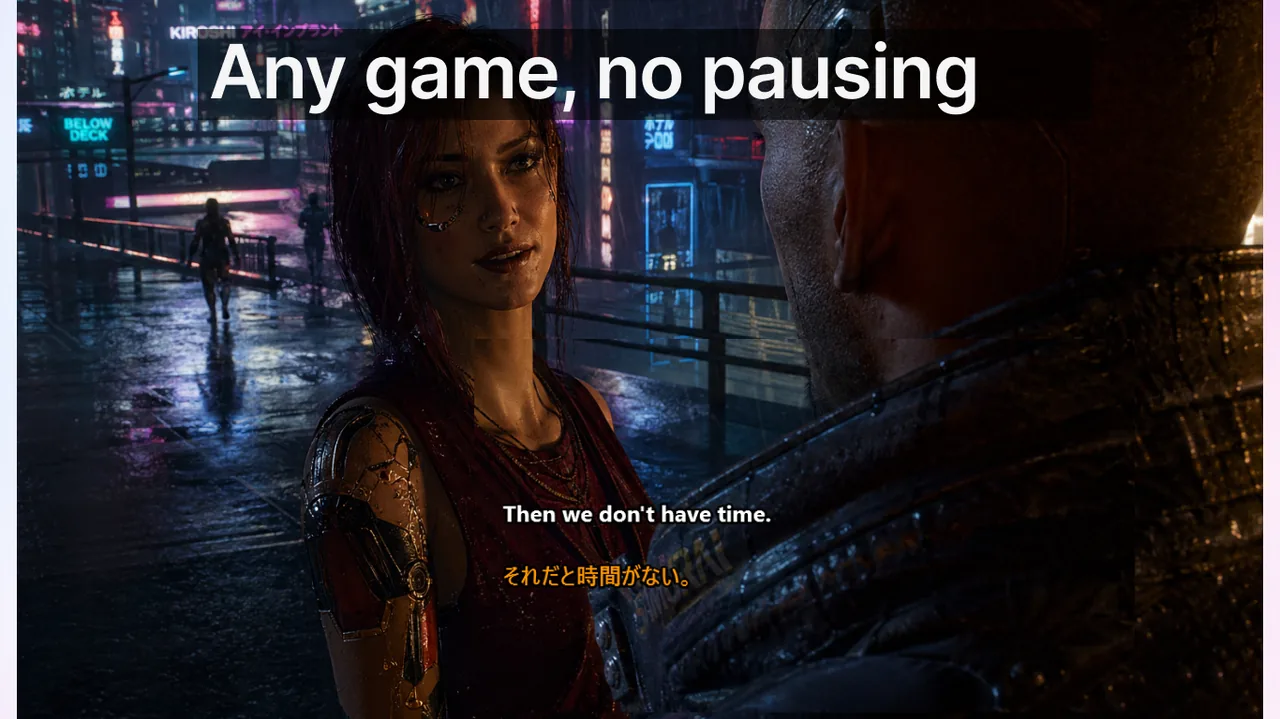
Viewer-side apps invert the problem. Instead of hooking into Twitch, they transcribe the audio already playing on your own machine and draw subtitles in a floating overlay on your screen. Nobody else sees them, and the streamer's setup is irrelevant — if you can hear it, it gets captioned.
This is what Live Subtitles does for Twitch, and the practical consequences are worth spelling out:
- It works on every channel, including channels that have never heard of captioning.
- It is not Twitch-specific — the same overlay captions a YouTube Live stream, a Kick stream, a Discord call or a video in a browser tab, with no reconfiguration.
- It handles translation for the viewer rather than the broadcaster, across 50+ language pairs, with the original and the translation shown at the same time.
- It has a click-through Game Mode, so captions stay readable over a fullscreen game if you watch a stream while playing.
The equally important limitation: your viewers will never see these captions if you are the one streaming. A viewer-side overlay solves a viewer's problem. If you want your audience captioned, you need one of Options 1-3. Many streamers end up running both — a broadcaster-side tool for the audience, and a viewer-side overlay so they can follow a foreign-language co-streamer or game themselves.
Side-by-side comparison
| OBS captions plugin | Stream Closed Captioner | Browser-source service | Viewer-side app | |
|---|---|---|---|---|
| Who installs it | Streamer | Streamer | Streamer | Viewer |
| Delivery route | Native CC track | Extension overlay | Burned into video | Overlay on your own screen |
| Viewers can toggle off | Yes | Yes | No | N/A — only you see it |
| Survives into the VOD | Yes | No | Yes, permanently | No |
| Works in Twitch mobile apps | Yes | Yes | Yes | Desktop and mobile app, viewer-side |
| Encoder requirement | OBS only, not Streamlabs | Any | Any with browser sources | None |
| Translation | Limited | Few languages, Bits-gated | Broad | 50+ pairs, dual display |
| Works on channels with no setup | No | No | No | Yes |
| Typical cost | Free | Free; viewers pay Bits for translation | Subscription | Paid app, free to try |
Which option actually fits your situation
You are a viewer
Options 1-3 are not available to you in any meaningful sense — you would be waiting for thousands of individual streamers to each set something up. A viewer-side app is the only route that works across the channels you actually watch. If your reason for wanting captions is that the stream is in a language you do not speak, this is doubly true, since broadcaster-side translation is rare and narrow.
You stream on OBS to an English-speaking audience
Use the OBS captions plugin. It is free, it takes about ten minutes to set up, it uses the native caption track so viewers keep control, and the captions survive into your VODs and clips. There is little reason to pay for anything else at this stage.
You stream on Streamlabs, XSplit or Twitch Studio
The OBS plugin is unavailable, so Stream Closed Captioner is the natural default — it runs on Twitch's side and does not care about your encoder. Accept that your VODs will be uncaptioned.
You have a genuinely multilingual audience
This is the one case that justifies a paid browser-source service, because broad translation is the thing free tools do worst. Budget scene space for the caption bar before you go live rather than after.
You are a streamer who also watches other streams
Run both layers. They solve different problems and do not conflict: a broadcaster-side tool for your audience, and a viewer-side overlay for raids, collabs and foreign-language games where you need to follow along yourself.
The gap none of these fully closes
Across every broadcaster-side option, translation is the weak point. The free tools handle a handful of languages; the paid ones handle more but bill monthly and burn the result into the frame for everyone. Meanwhile the audience for a mid-size Twitch channel is routinely spread across a dozen languages.
Structurally, this is hard to fix from the broadcaster's side. A single burned-in caption bar can only display one or two languages at once, and a caption track carries one language. Serving twelve languages from the stream would mean twelve tracks and twelve translation bills, for an audience the streamer cannot see the language breakdown of.
The same problem is straightforward from the viewer's side, because each viewer only needs one language: their own. That asymmetry is the practical reason viewer-side captioning exists as a category at all, and why the two approaches complement each other rather than compete. Our live stream subtitles guide covers the viewer-side setup across platforms, and the OBS subtitles page covers where the line falls in a streaming rig.
Frequently asked questions
Does Twitch have automatic captions?
No. Twitch has no first-party automatic captioning. It supports a closed-caption track that broadcaster software can fill, but the platform will not generate captions for you the way YouTube Live does.
Can I get captions on a stream that has no captions?
Yes, but only from your side. A viewer-side app transcribes the audio playing on your own machine, so it works regardless of what the streamer has or has not set up.
Will captions show up in my VOD?
Only with the native caption track (OBS captions plugin) or burned-in captions from a browser source. Extension overlays are rendered by the Twitch player at watch time and are not part of the recorded video.
Do captions work in the Twitch mobile app?
Native caption tracks and extension overlays both render on mobile. Burned-in captions appear everywhere by definition, since they are part of the video.
Can I caption a Twitch stream in another language?
Broadcaster-side translation exists but is narrow — a few languages, often behind Bits or a subscription. Viewer-side translation is much broader, because each viewer only needs their own language rather than all of them at once.
References
- Stream Closed Captioner — official site
- OBS Captions Plugin — project repository
- Twitch — Closed Captions documentation
- YouTube Help — automatic captioning
Related reading
Subtitles on any stream, whether or not the streamer enabled them
Live Subtitles captions system audio on your own machine, so every stream gets subtitles — plus real-time translation into 50+ languages.
Download free