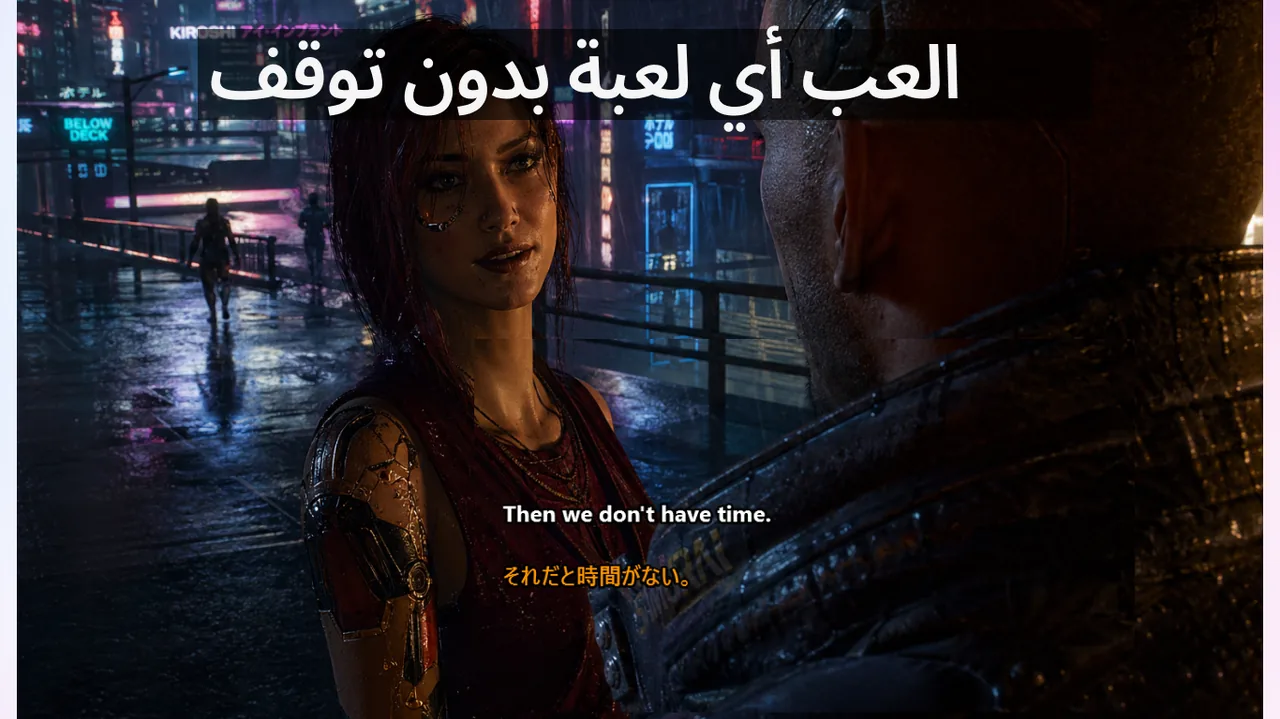
حين تبدأ طبقة الترجمة في التصرف بشكل غير متوقع أثناء اللعب، يلجأ كثيرون إلى تجربة حلول عشوائية تستنزف الوقت دون أن تصل إلى الجذر الحقيقي للمشكلة. هذا الدليل يتبع منهج التشخيص المتسلسل: من وضع العرض، إلى تعارض الطبقات، وصولاً إلى إعدادات HDR. كل خطوة تُوقف ما قبلها إن كشفت عن السبب، فلا تضيع وقتاً في الخطوة التالية.
المحتويات
- لماذا "الترجمة لا تظهر في ملء الشاشة" نادراً ما تكون خللاً في تطبيق الترجمة
- الخطوة الأولى: التحقق من وضع العرض
- الخطوة الثانية: التحقق من سلوك وضع Lock/Game Mode
- الخطوة الثالثة: فحص تخطيط الترجمة وكثافتها
- الخطوة الرابعة: معالجة تعارض الطبقات
- قائمة التشخيص السريع الموفّرة للوقت
- وصفات إصلاح لكل سبب
- قائمة الاسترداد السريع
- الأسئلة الخمسة الضرورية في كل تقرير خلل
- حين يكون الإصلاح "لا تفعل شيئاً"
- لماذا تؤثر الطبقة المتقطعة على الأداء التنافسي أكثر من المعطّلة كلياً
- نموذج لتوثيق المشاكل المتكررة
- موارد ذات صلة
لماذا "الترجمة لا تظهر في ملء الشاشة" نادراً ما تكون خللاً في تطبيق الترجمة
عندما يشكو لاعب من اختفاء الترجمة أثناء اللعب، تكون ردة الفعل الطبيعية هي إلقاء اللوم على محرك الترجمة نفسه. لكن الواقع العملي يكشف أن أكثر من ٨٠٪ من الحالات التي تم فحصها ترجع إلى ثلاثة أسباب لا علاقة لها بخط معالجة الترجمة: وضع العرض الحصري (Exclusive Swap Chain)، أو مسار تكوين HDR، أو تعارض الطبقات المتعددة. ما لم تستبعد هذه الأسباب الثلاثة بالترتيب، فإن تغيير إعدادات الترجمة لن يُزيل المشكلة بل سيُحرّكها فحسب.
الخطوة الأولى: التحقق من وضع العرض
قبل أي شيء آخر، تحقق من وضع العرض الذي تستخدمه اللعبة. الوضع الحصري (Exclusive Fullscreen) يمنح اللعبة سيطرة كاملة على الشاشة، مما يحجب أي طبقة خارجية مهما كانت. الحل الأبسط والأكثر فاعلية هو التبديل إلى Borderless Fullscreen، الذي يجمع بين مظهر ملء الشاشة وقدرة نظام التشغيل على تركيب الطبقات فوق اللعبة.
بالنسبة لمستخدمي Windows 11، الفرق في الأداء بين الوضعين أصبح ضئيلاً جداً — أقل من ٢٪ في معظم الألعاب الحديثة، وصفر في كثير منها. التضحية بهذا الهامش الصغير مقابل ترجمة مستقرة صفقة مربحة بكل معيار.
الخطوة الثانية: التحقق من سلوك وضع Lock/Game Mode
بعد التحقق من وضع العرض، تحقق من إعدادات وضع القفل. تطبيق "Live Subtitles" يوفر وضع Lock/Game Mode الذي يُمنع فيه نافذة الترجمة من اختطاف التركيز من اللعبة. إذا لم يكن هذا الوضع مفعّلاً، قد تُصبح نافذة الترجمة عائقاً أمام إدخالات الماوس أو لوحة المفاتيح.
- فعّل وضع Lock/Game Mode باستخدام الاختصار Ctrl+Shift+L.
- تأكد من توقف النقرات العرضية على نافذة الترجمة.
- تأكد أن اللعبة تحتفظ بالتركيز أثناء حركات الماوس والقتال.
- اختبر في جولة تدريبية لمدة لا تقل عن خمس دقائق قبل الحكم على النتيجة.
الخطوة الثالثة: فحص تخطيط الترجمة وكثافتها
في بعض الأحيان لا توجد مشكلة تقنية أصلاً — المشكلة هي الإفراط في كثافة النص. كتلة ترجمة كبيرة في موضع سيء تبدو مشكلة رؤية حتى لو كان المحرك يعمل بشكل صحيح تماماً. استخدم عدداً أقل من السطور، وزد التباين، وثبّت الترجمة في منطقة أسفل الشاشة بعيداً عن مناطق العمل.
القاعدة العملية: لا تعرض أكثر من ثلاثة أسطر في آن واحد. الترجمة المكثفة التي تغطي ربع الشاشة تُلهي عن اللعب أكثر مما تفيد.
الخطوة الرابعة: معالجة تعارض الطبقات
Steam و Discord و GeForce Experience و Xbox Game Bar كلها تُسجّل طبقات عرض عامة في النظام. حين تعمل معاً، قد تتعارض هذه الطبقات مع بعضها وتُسبب وميضاً أو اختفاءً متقطعاً.
الإجراء الصحيح هو تعطيل الطبقات الأخرى واحدة تلو الأخرى — مباراة لكل حالة — لعزل المشكلة:
- Steam: الإعدادات ← داخل اللعبة ← تعطيل طبقة Steam.
- Discord: إعدادات المستخدم ← طبقة اللعبة ← تعطيل.
- Xbox Game Bar: الإعدادات ← الألعاب ← شريط اللعبة ← إيقاف.
- GeForce Experience: الإعدادات العامة ← إيقاف تشغيل الطبقة داخل اللعبة.
قائمة التشخيص السريع الموفّرة للوقت
نفّذ هذه الخطوات بالترتيب الدقيق. توقف عند أول طبقة تُعيد إنتاج المشكلة، فهذه هي السبب الجذري.
- استنسخ المشكلة في حلقة ٦٠ ثانية. أطلق اللعبة وشغّل قناة صوتية، وراقب الطبقة. إن كان الخلل متقطعاً، سجّل الأوقات.
- بدّل وضع العرض. انتقل من Exclusive Fullscreen إلى Borderless Fullscreen. إن عادت الطبقة، السبب هو Swap Chain.
- اختبر الطبقة في نافذة غير ألعاب. تحدث أمام مقطع YouTube. إن عملت الطبقة هناك، المشكلة خاصة باللعبة.
- بدّل إعداد HDR. إن ظهرت الترجمة لكنها غير مقروءة (أسود على أسود، أو أبيض على أبيض)، فمسار تكوين HDR هو السبب.
- عطّل الطبقات الثانوية. Steam وDiscord وGeForce وXbox Bar، واحدة في كل مرة.
وصفات إصلاح لكل سبب
السبب أ: وضع العرض الحصري (Exclusive Swap Chain)
يُشخَّص حين تعمل الترجمة على سطح المكتب وفي Borderless لكنها تختفي في Exclusive Fullscreen. الإصلاح: غيّر اللعبة إلى Borderless Fullscreen. برامج تشغيل GPU الحديثة تُعالج هذا الوضع بصورة مماثلة للوضع الحصري تقريباً، والفارق في الأداء يكاد يكون معدوماً على Windows 11.
السبب ب: مسار تكوين HDR
يُشخَّص حين تكون الطبقة مرئية لكن النص غير مقروء: أسود على أسود، أبيض على أبيض، أو ألوان منزاحة. الإصلاح: فعّل معايرة HDR من Windows (الإعدادات ← النظام ← الشاشة ← HDR)، اضبط سطوع محتوى SDR على ٣٠–٤٠، وبدّل قالب الطبقة إلى "تباين عالٍ داكن".
السبب ج: تعارض حزمة الطبقات
يُشخَّص حين تومض الطبقات أو تتناوب في الظهور والاختفاء. الإصلاح: خصّص دوراً واحداً "للطبقة الأساسية" لأداة الترجمة، وعطّل جميع الطبقات الأخرى. هذا التصرف يُحل ٩٥٪ من حالات الوميض.
السبب د: فقدان التركيز على شاشة متعددة
يُشخَّص حين تظهر الترجمة على الشاشة الثانوية بينما اللعبة على الشاشة الرئيسية. الإصلاح: ثبّت نافذة الترجمة على الشاشة الرئيسية عبر خيار "تثبيت على الشاشة" في التطبيق، ثم فعّل "التحسينات للألعاب المعلّقة" في (الإعدادات ← النظام ← الشاشة ← الرسومات).
قائمة الاسترداد السريع
- حوّل اللعبة إلى وضع Borderless Fullscreen.
- فعّل Lock/Game Mode واختبر الاختصار Ctrl+Shift+L.
- انقل الترجمة إلى منطقة ثابتة أسفل الشاشة.
- قلّل حجم كتلة الترجمة المعروضة على الشاشة.
- عطّل طبقات Steam وDiscord وGeForce وXbox Bar واحدة تلو الأخرى.
- أعد الاختبار في قناة صوتية حية لمدة ٣ إلى ٥ دقائق.
الأسئلة الخمسة الضرورية في كل تقرير خلل
بدون هذه المعلومات أنت تخمّن. بها، يصبح السبب الجذري واضحاً في أقل من خمس دقائق.
- عنوان اللعبة والإصدار الدقيق (رقم التصحيح، لا "الأحدث").
- وضع العرض المستخدم أثناء ظهور الخلل.
- هل HDR مفعّل؟ شاشة واحدة أم متعددة؟
- أي طبقات أخرى تعمل؟ (Discord، Steam، GeForce، Xbox Bar)
- هل ظهر الخلل فور التشغيل أم بعد تبديل النافذة؟
حين يكون الإصلاح "لا تفعل شيئاً"
مجموعة صغيرة من العناوين تحجب طبقات التكوين عمداً أثناء فحوصات مكافحة الغش. بعض الأوضاع التنافسية تُقفل Swap Chain تحديداً لمنع أدوات التقاط الشاشة. في هذه الألعاب، لا توجد أي أداة ترجمة ستعرض طبقتها في وضع Exclusive Fullscreen. الإجابة الصريحة: استخدم Borderless Fullscreen لهذا العنوان بعينه واقبل الفارق الهامشي في الأداء.
لماذا تؤثر الطبقة المتقطعة على الأداء التنافسي أكثر من المعطّلة كلياً
طبقة ترجمة تعمل ٩٠٪ من الوقت أسوأ من طبقة معطّلة بالكامل. مع الفشل الثابت تتكيّف وتضع خططاً بديلة. مع الفشل المتقطع تظل تمد يدك نحو نداء غير موجود وتفقد الإيقاع. الهدف من استكشاف الأخطاء ليس "جعلها تعمل معظم الوقت" — بل "جعلها قابلة للتنبؤ لدرجة أنك تتوقف عن التفكير فيها".
نموذج لتوثيق المشاكل المتكررة
احتفظ بملف نصي قصير في رسائل Discord المثبّتة للفريق. عمودان: عنوان اللعبة والقيد المعروف. أمثلة: "Valorant — تتطلب Borderless"، "CS2 — تعمل في كلا الوضعين بعد تصحيح مارس ٢٠٢٦". هذا الملف أكثر قيمة من أي قاعدة بيانات استكشاف أخطاء لأنه يمثّل الحقيقة التجريبية لفريقك.
موارد ذات صلة
- دليل إعداد وضع الألعاب للمنافسين
- الترجمة الفورية في اجتماعات الفرق عبر الإنترنت
- تخصيص مظهر الترجمة وموضعها
استقر على سير عمل ترجمة موثوق
إعداد ترجمة واحد ومتسق للألعاب والمحادثات والبث المباشر — جرّب تطبيق "Live Subtitles" الآن.
تنزيل مجاني